
< All Topics
Print

Receivables 22.1

OCC Icon in Payment Entry

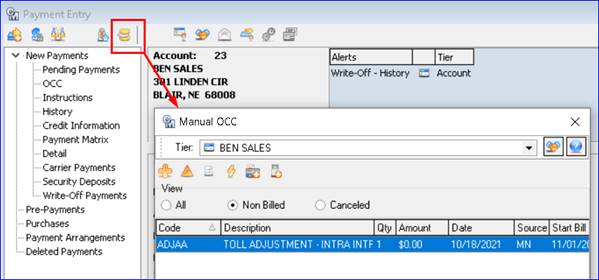
Manual OCC icon added to Payment Entry: A Manual OCC icon was added to the Payment Entry toolbar for easy access from any node of the payment entry screen. The button has the same functionality as the Manual OCC screen accessed from Inquiry. Once an account is selected, clicking the icon will open the Manual OCC screen defaulted to Non-billed and the Account Tier.
Receivables 1
Table of Contents


Delinquents

No Penalty Option for Delinquents

A new “No Penalty” option is now available for delinquent accounts, so users have the ability to send a late notice to an account, but keep the account from getting a penalty. An Expire Date, Alert, and reports are available for accounts flagged No Penalty.

A No Penalty check box was added to the Credit Node of the Service Order, with a corresponding Expire Date drop-down calendar. When checked, the account can receive a delinquent notice, but will not get a late fee during the Penalties process. The Expire Date can be set to limit the amount of time the account is exempt from penalties.

A No Penalty Alert is available for both Inquiry and Payments at Maintenance | Common | Alerts, and will display in the Alerts window for any accounts flagged No Penalty.

The Non-Zero Balance Report found in the report’s menu of the Delinquent process, contains a new No Penalty column to aid in identifying No Penalty accounts.

The Credit Attributes report, and the Grid Report – Account can be used to discover accounts flagged as No Penalty. The Credit Attributes report has a new group box for No Penalty Options, and the Grid Report – Account includes No Penalty, and No Penalty Expire Date selections.